
mPulse Discover Product Support
Product Documentation
Product Documentation
mPulse Discover:
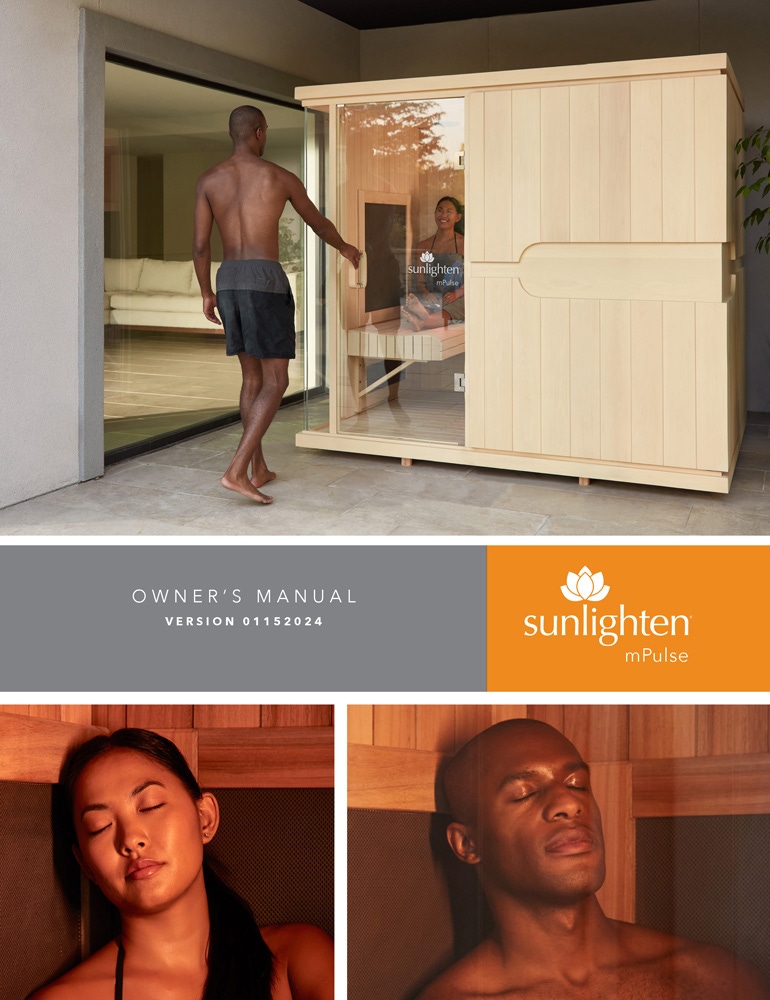
- mPulse Owner's Manual
- mPulse 10 Owner's Manual
- mPulse Tech Guide
- mPulse Discover Spec Sheet
- mPulse Discover Assembly Guide - Power Box 6
- mPulse Smart Sauna Discover Assembly Guide with Receiver
- USB/SD Media Player User Manual
- Cabin Cleaning & Maintenance Guide (UK)
- Classic Sauna Cover installation guide
- Android Control Pad Installation
- mPulse Power Box Installation
- mPulse SoloCarbon Heater Replacement Guide
Helpful Videos
See how to assemble your mPulse Sauna.
Watch how to disassemble your mPulse sauna.
See how to install or realign your mPulse sauna glass door.
Watch how to replace your android control pad in your mPulse sauna.
Learn how to replace your mPulse sauna power box.
See how to pair your sauna stereo with your personal device using Bluetooth
See how to install or replace your chromotherapy lights.
Learn how to install Sound Vibration (Acoustic Resonance) Therapy into your sauna.
Watch how to replace your Sunlighten sauna stereo.
Learn how to replace your mPulse near or red/near infrared LED panel.
Watch how to replace your mPulse sauna heater.
Frequently Asked Questions
Quick Mode is ideal for a basic high-temperature experience that utilizes the full spectrum wavelengths at maximum intensity to increase the temperature of the cabin.
The ‘Custom’ icon will be at the top of the programs screen after the presets. This mode enables you to draft your own session with dynamic features by doing so in segments. This enables you not only to determine the length of the session, but apply different wavelengths of infrared at different points in the same session. Tap the plus icon to add a segment. You’ll be able to give your program a name and customise the intensity of the heaters and wavelengths used.
The Customise Heaters screen allows you to determine the intensity of mid and far infrared on individually selected heaters during the duration of a program segment, represented by a slider bar that goes up to level 10. For ease of selection, you can toggle between Sauna View and a list of the heaters at the top of the screen. In Sauna View, use the left, down, and right arrows to navigate the sauna interior to select heaters individually. In Heater List view, make edits to each heater’s parameters by tapping the pencil icon. Left and right in this view assume orientation toward the seated position.
When finished, go back a screen and either add a segment by tapping “Add Session” or complete the program by selecting ‘Save Program.’ This will return you to the Programs screen, where you’ll see your newly created Custom Program beneath the preset icons.
Unlike a traditional sauna, infrared heats the body directly. Air temperature in the sauna is not as important as the type and quality of the infrared being received. To provide the peak far infrared wavelength of 9.4 microns, the surface temperature of an object must be controlled. The cooler the surface area of the heater, the more far infrared energy will be produced. Sunlighten saunas have heat sensors at multiple locations to measure surface temperature of the heaters to emit the optimal wavelength. Similar to the climate control system for your home, you can set the thermostat to MAX to attain the highest air temperatures in the sauna, which will allow the sauna to reach its highest air temperature possible. During a 30-minute session, the air temperature will reach between 48-70° when seated on the bench.
- Chromotherapy Remote Control - Utilize the small remote that comes with your sauna to manage the internal lights, enabling color changes and on/off controls with ease.
- Internal Lights Toggle - For newer mPulse models, you may need to activate the internal lights toggle. To do this, access your in-sauna tablet through the Sunlighten app. Navigate to 'My Sauna' and locate the light bulb icon. Toggle on the lights from here. Then, use the Chromotherapy remote to select your desired color by pointing it at the light bulbs.
- Battery - If the remote isn't working it could need a battery replacement (CR2032, a small flat disk).
- Remote Range - The remote has a short range and may need to be used closer to the light, a foot or less from it.
- Full Contact - It's possible the light itself may not be rotated in the roof socket so that the metal leads aren't making contact. Make sure the lights are adequately tightened.
- Voltage - If the remote has never worked it may be an indication that you received the one for the alternate voltage bulb (there are 12v and 5v depending upon sauna model)
Attempt to restart your unit by pressing and holding the Android control panel’s power button for a few seconds and tapping ‘Reboot.’ Upon restarting, are you seeing the error message E2 or E3?
For error message E2, ensure the serial number is correct in your user profile. Tap the person icon in the upper right corner, select your user profile from the list, and tap My Sunlighten Saunas. You’ll see the model and image of your registered units. Select your sauna and the corresponding serial number will be displayed.
For error message E3, ensure the proper voltage is being supplied to the unit (Aspire/Believe = 120V – Conquer/Discover/Empower = 240V) For either error, if persisting after ensuring serial number/voltage contact customer care. You can also see these in the diagnostics tab of the newer software(s).
Our 3 in 1® wellness programs are designed to reach between 48-54 degrees, as this is the optimal infrared sauna temperature range. Each program has a unique blend of infrared wavelengths and intensity levels designed after third-party research. The power going into the heater fluctuates to maintain the optimal surface temperature of the heater. That is different than the temperature that you’re seeing on our Android control panel. The temperature displayed will change, but the surface temperature is going to stay consistent. That is why the temperature varies for each program. If you desire a hotter sauna experience, here are some tips:
- Preheat your sauna to 54-60 degrees by manually adjusting the temperature and duration dials on the home screen of your Android control panel. Get in for 10-15 minutes before starting the program or when the cabin temperature is at a comfortable level.
- Create a custom program based on ambient temperature.
You can find your sauna serial number in multiple ways.
- Serial number can be found on the tag attached to the door of your unit; if the unit is brand new.
- Serial number can be found on the outside back wall of the unit near where the power cord is coming out.
The blue light on the LED panel is an indicator that the near-infrared LEDs are on. When there is no blue light, the LEDs are inactive. Near infrared at the 880nm wavelength is invisible to the naked eye, so the indicator is placed to tell you when its active.
If seeing an ‘E7’ error, this is usually an indication of your lighting control unit being disconnected or partially connected. This is a small black box with a house shape connector found in the roof in the front right corner. Its corresponding connection is protruding up into the roof out from the front wall.
Our saunas are based on the infrared wavelength and not cabin temperature. Set to the desired temperature and allow the sauna to warm up for 45-60 minutes. The sauna heats up at an average of 1 degree per minute.
Follow these steps for proper warm up:
- Make sure your sauna is plugged into a dedicated circuit installed by your electrician.
- Set to the desired temperature and set time to 60 minutes.
- When turning sauna on for the first time, ensure each heater is active after a couple of minutes. If they are not, make sure connections are securely paired from their initial wire feed coming from the power box under the bench.
- Never fully cover the floor grate and heater with any obstruction that will not allow the heater to dissipate its heat.
You can also use the scheduling feature to have the sauna heat up at a certain time. The Android control panel must not be ‘shutdown’ to use this feature.
NOTE: If your sauna is outside in an unheated garage, sun room, basement or patio, you may require additional time to warm the sauna up depending upon the temperature of the surrounding surface and room. REMEMBER, you are required to have an authorized Sunlighten cover over your sauna if it is outside or exposed to the weather in order to maintain your warranty.
While using the Sunlighten app, adjust your sauna’s temperature by sliding the indicator circle around the left dial on the Quick Mode screen.
For Android 6 tablets: Android Control Pads in saunas from 2018 and later will receive the Over the Air push prompt. Your ACP will need to have software version 2.20.610 or after to perform that update. The version number can be found on Settings/Setup and looking in the top right portion of that screen.
For Android 10 tablets: You can update the app by navigating to the Google Play Store, search for the Sunlighten app and then update. Or reboot your tablet to see the pop-up prompt requesting the update.
Some third party apps are dependent on Google Location Services to properly function. There are two ways to enable Location Services: at the initial Account Setup, when you’re asked to do so after connecting your wireless network, and on the Android Settings Location page.
This was a software bug that was resolved with the most recent update. Be certain that you’re on the latest version of the app.
For Android 6 tablets: You can check the current version on the tablet by tapping the person icon in the upper right portion of the screen and selecting your user profile. It will be displayed at the bottom under the ‘Update app’ button. Tapping the ‘Update App’ button will automatically prompt you for update if not using the latest version. After installation, test your audio and make sure your stereo’s Source (SRC) is set to R-Aux. If sound issue persists, disconnect bluetooth on the tablet by navigating to Android Settings and toggling bluetooth off.
For Android 10 tablets: You can update the app by navigating to the Google Play Store, search for the Sunlighten app and then update. Or reboot your tablet to see the pop-up prompt requesting the update.
After completing the initial setup process and registering your user account, you can still go back and modify the settings. Tap the More tab at the bottom of the Sunlighten app screen and select either Edit Preferences or Manage My Information to adjust these settings.
- Navigate to the Android home/app screen by pressing the circle icon at the bottom of the screen
- Tap the Google Play Store icon
- Sign-in with your Google or Gmail account
For Android 6 tablets: With your Wifi enabled, go to Settings/Set-Up and select “Download the latest software update.” If an update is available, a download prompt will appear. After successful download, follow the prompts to install the new version. If Wifi is not available, you can update using a USB storage device. Click for download instructions using USB drive.
If you have set up a profile, you may tap the user icon in the upper right corner of the screen, select your user profile and scroll to the bottom to select “Update App”. Each update of the app will be listed in ascending order by the version number. To receive future updates, you will need to reboot your Android control pad daily by pressing the power button down for one second and choosing “Power Off” when you’re finished using the sauna for the day. This will allow for your sauna to receive updates automatically. A prompt will appear to notify you of pushed updates.
For Android 10 tablets: You can update the app by navigating to the Google Play Store, search for the Sunlighten app and then update. Or reboot your tablet to see the pop-up prompt requesting the update.
Netflix will be preloaded with the app update. You will have the ability to download additional apps from the Google Play Store, such as Amazon Prime, HBO MAX, Spotify and Pandora. We have tested popular music and streaming apps and found them to be compatible with the Sunlighten app, but due to updates and changes with third party apps, we cannot guarantee functionality.
The sauna screen goes into a low power mode when the screen is not being interacted with. This saves power but does not lose any of your settings or where you are in your session. Press the tablet power button in the bottom right to bring the screen back up.
Your Chromotherapy lights are controlled with the small remote provided with your sauna.
Important Note: For newer mPulse models and those purchased in 2018 or earlier, you can turn the interior lights on/off within the Sunlighten App on your in-sauna tablet. To activate the internal light controls for newer models, tap the light bulb silhouette in the upper right corner of the 'My Sauna' screen. However, color settings for newer models still require control via the remote after toggling the internal lights on.
The audio from the Android tablet should be coming from your saunas' speakers. You will not hear audio from the tablet directly. First, check that no other device is connected to the Bluetooth amplifier. Then, ensure the cable connections from the tablet to the Bluetooth amplifier on the roof of the sauna are secured (this will be a red and white cable). If you need assistance with these connections, please contact Customer Care at 877-292-0020 and follow the prompts.
Yes, you can set all of them up using your same email. You will have one account with several saunas (most applicable to commercial locations).
You will need to set up your account using the same email you used to purchase your sauna. You will also need your serial number. If you don’t remember your email or want to use a different email, please call Sunlighten Customer Care at 0330 808 1203. They will be able to reset your account.
- Swipe downward from the top of the screen, and pull the 'tray' to the bottom.
- Tap the Settings icon (Cog wheel)
- Tap “Apps & notifications”
- Select the app you wish to uninstall
- Tap uninstall
Preloaded apps (like Sunlighten, HULU, Netflix, Google-related apps, etc) will not show an uninstall option. These can not be uninstalled from the tablet.
Pre-heat can be set for up to a maximum of 60 minutes before a session. For entire pre-heat setting to cycle, the time set must be the same or great amount of time in the future from the scheduled session.
For example, we schedule a program to start at 12:50 PM and the current time is 12:40. If we try to set pre-heat for 20 mins, it won’t be the complete pre-heat cycle because there are only 10 minutes between now and session’s scheduled start time.
Diagnostic is a section that can be found under 'More' within the Sunlighten App to help our Customer Care team have insight into what’s happening with your sauna for troubleshooting assistance.
Updating to the latest version of the app will be the best next step. You’ll need to be logged in to a google play store account and update directly through the play store.
The bottom of the tablet will have little icons, a square, a circle, and a triangle. If these shapes are filled completely white, you’re on Android 10. If they are unfilled outlines, you’re on Android 6.
Yes, under the Schedule screen, you can select a daily, weekly, or monthly frequency.
Please refer to our installation guide using the link below:
The LED panel should not feel hot because the technology reduces the heat near infrared normally emits. The LEDs emit wavelengths that the body cannot easily detect as radiated heat. Radiative IR approximately spans 3um to 100um, longer in wavelength than the 650nm and 875nm waves that the LEDs output.
LED panels will generate noticeable heat as a side effect of operation but that is unintentional. Similar to how a incandescent light bulb heating up is a side effect of its operation.
You do not need to, but if you are concerned always use caution and feel comfortable to wear goggles. We do recommend you do not look directly into the near-infrared/red light panels.
In the new mPulse with red light, the panel is an equal blend of both red light LEDs and near infrared LEDs. The result is not a reduction but an overall increase in benefits because we’ve expanded the wavelengths to include red light at 650nm. Research also shows that combining the two wavelengths together enhances the beneficial effects.
Red light is visible, it is a different wavelength in the range from 620-750 nm and penetrates slightly less deep than near infrared. Near infrared is invisible, is wavelength between 720-900, and penetrates the body most deeply. Sunlighten’s mPulse delivers the peak wavelengths of 650nm and 880nm. Red light and near infrared are both bioactive and are absorbed by mitochondria, blood and water cells to initiate a variety of biochemical activities throughout the body that creates many health benefits, including skin health, pain relief, muscle recovery and anti-aging. Both are natural, safe, non-invasive and side-effect free.
We recommend putting your face as close to the panel as you feel comfortable.
Our LED panels deliver 1-3mW/cm2 of light to the skin delivering 3 J/cm2 every 15 minutes, 6 J/cm2 every 30 minutes and 10 J/cm2 every hour. After about 15 minutes, you will receive the benefits of NIR/Red light.
We are always open to innovating light therapy based on scientific study. As of right now we have not discussed adding blue light LEDs to the saunas.
There are thousands of peer-reviewed research studies on the many benefits of red light and near infrared. The benefits are so similar, especially for the peak near wavelength that we integrated in mPulse first, based on the recommendation of infrared expert Dr. Henry Whelan. To integrate red light in our LED panels, we focused on the science that supports pairing red light at the peak wavelength with the most comprehensive benefits (650nm) to enhance the near infrared and its benefits even more. The red light will add to the current programs with near infrared. It’s an enhancement to what already exists.
Red light/near infrared loses effectiveness the farther away you sit. To get the full effect, find a comfortable position to sit in near the LED panel.
The light bulbs inside the cabin saunas are the Chromotherapy lights, which are controlled by the Chromotherapy remote. For newer mPulse models, you'll need to activate the interior lights from your in-sauna tablet before you can use the Chromotherapy remote to control the lights. To do this, locate the light bulb icon on the Sunlighten Sauna app home screen on your in-sauna tablet and toggle on Interior Lights. If you don't see Interior Lights as an option, go to More > Tablet Settings and toggle on 'Show Interior Lights' then try again. Once Interior Lights is togged On, you can use the Chromotherapy remote to select your desired color by pointing it at the light bulbs.
You will see the red lights visibly turn on. There is also a blue indicator LED at the top of the LED panel that indicates the panel is on. NIR is invisible so cannot be seen visibly; however, if the indicator light is on and the red lights are on, the NIR is working, too.
There is no change in the EMF levels because we have simply replaced some near LEDs with red light LEDs.
The CELLIANT fabric is transparent to NIR light and opaque to red light. The mesh holes in the fabric let the red light pass through. The CELLIANT covers also enhance the benefits of the near infrared, so the net result is still beneficial levels of red light and near infrared.
We wanted to retain the relaxing and enjoyable infrared sauna experience, while also adding the benefits of red light. Most high power density/short time length devices are bright, loud and uncomfortable. To create a beneficial and enjoyable sauna experience, the red/NIR LED panels in our saunas are typically used for longer durations and lower power density than dedicated red/NIR LED devices, in some cases multiple hours, so that the experience remains enjoyable while also being effective. To stay below dosage thresholds outlined by low level light therapy research, the power is reduced compared to other LED companies.
Sunlighten is at your service.
9:00 am – 5:00 pm (AEST) Monday - Friday
10:00 am - 2:00 pm (AEST) Saturday
Email Us:
Call Us: